Metadata for object of type CodeUnit with id ***** is in a failed state.

While developing Windows Embedded 6.5.3 application for WMS (Warehouse Management System) which relies on Dynamics NAV web services I have encountered rather “familiar” error:

Metadata for object of type CodeUnit with id ****** is in a failed state…. error CS1001: Identifier expected.

OK, I said, I will recompile the object and restart Microsoft Dynamics NAV Business Web Services.

Recompile, restart… same error. What now? Hmm… restart Web Services Windows Service again. Nope!

Went into code and view the last function I have edited. Nothing suspicious. Compile – everything OK. Puf?!

Let’s go to error again (reading it whole this time). Whoa… Error details info:

…Error details: c:\ProgramData\Microsoft\Microsoft Dynamics NAV\60\Server\MicrosoftDynamicsNavServer\source\Codeunit\Codeunit50004.cs(498,163) : error CS1001: Identifier expected

Ok. Let’s open the error details file. It opens in Microsoft Visual Studio Tools for Applications. Went to line 498 and position 163 and I can see the following line of my function (with source in C#) which ends like:

CS1001_identifier_expectedThere is Int32 param in my function without identifier (which the error clearly states)!

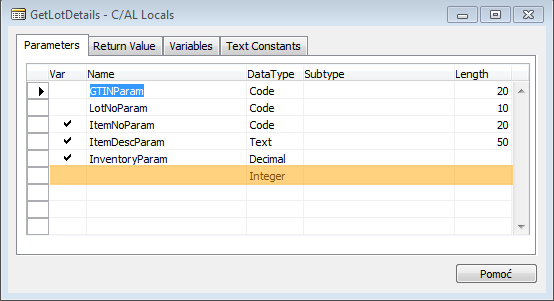
Went back to my codeunit in NAV and opened C/AL locals of the function I have edited and I have something to see. There is a parameter WITHOUT NAME of Integer Type.

dynamicsNAV_identifierexpectedSomehow, while editing parameter list I have, inadvertently, created new parameter row, never assigning a name to it. NAV thinks this is OK and allows the codeunit to be compiled, but the NAV Business Web Services doesn’t like this.

Resolution

Resolution was simple. Removed the “unintentional” parameter, recompiled codeunit, restarted NAV Web Service and everything was fine, again. 🙂


Using Team Foundation Server Express 2012 with Visual Studio 2008

While developing Windows Embedded 6.5.3 mobile application, for which the “latest” IDE is Visual Studio 2008, we needed to setup some Source Code Version control system. The obvious decision was to use native Microsoft product.

The project requirements were not high regarding the number of programmers involved so I have decided to use Team Foundation Server Express 2012 (TFS), since it’s free for up to five users and can be up-scaled to full Team Foundation Server.

We have downloaded the Team Foundation Server Express 2012 from Microsoft site: http://www.microsoft.com/visualstudio/eng/products/visual-studio-team-foundation-server-express and our system administrator installed it on a separate VM, did all the security “mambo-jumbo” adding me as a Team Foundation Server Administrators.

Next thing to do is to have Visual Studio 2008 prepared to connect to TFS via Team Explorer. Order of steps is as follows:

  • Installation of Team Explorer for Visual Studio Team System 2008 (link ISO)
  • Installation of SP1 for Visual Studio 2008 (link ISO, link Installer) – if you have installed SP1 before Team Explorer then you need to reapply the SP1 installation (more info)
  • Installation of Visual Studio Team System 2008 Service Pack 1 Forward Compatibility Update for Team Foundation Server 2010 (link)
  • Installation of GDR Update for Visual Studio 2008 SP1 to add support for Team Foundation Server 2012 and Team Foundation Service Preview (link)

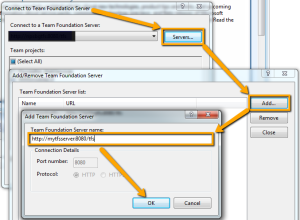
After all of these installations you should start Visual Studio 2008 and try to connect to Team Foundation Server. In Visual Studio go to Tools->Connect to Team Foundation Server… click Servers button and then Add… button. When Add Team Foundation Server window opens in Team Foundation Server Name insert full URL of the TFS. For example: http://mytfsserver:8080/tfs.

addTeamFoundationServer

Click OK, Close and in the Connect to Team Foundation Server select Team Projects you want to connect to.

Now you can start using Team Explorer (View->Team Explorer).

No execute permission on ” CodeUnit with ID 1.

When our client tried to connect with RTC to the application server he got error:

No execute permission on ” CodeUnit with ID 1.

The problem was raised when the client’s administrator was instructed to tighten NAV security assigning each user “Role ID” and “Company Name” in Logins->Roles.

After that the users could not login to the application server giving them previous error.

Solution

I found the solution on another blog (http://thinkaboutit.be/2012/07/no-execute-permission-on-codeunit-with-id-1/)

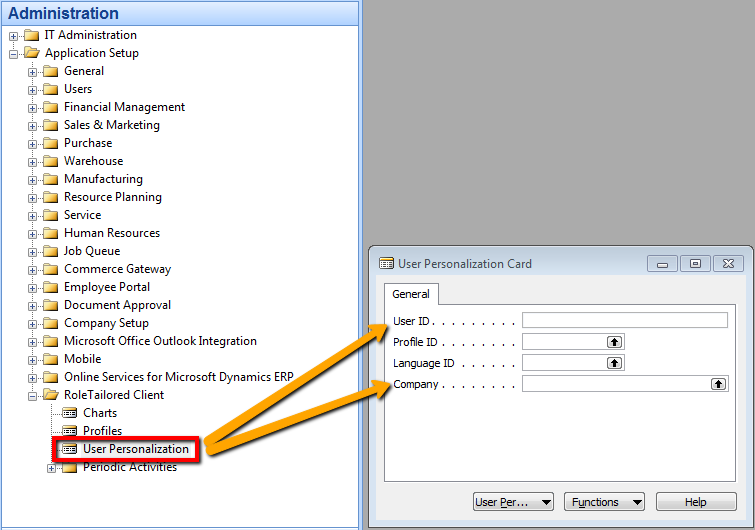
Basically the “User personalization” was not set for users that had “Company Name” assigned to their login Role. “User personalization” is found under Administration->Application Setup->RoleTailored Client->User Personalization.

User Personalization
User Personalization.

Creating new record with user who has a “Company Name” assigned should solve the RTC login error.